CA Data Agent MCP Server Setup Guide

Connect your AI assistant to BigQuery using MCP servers

1 Config
2 BigQuery MCP
3 CA Agent MCP
Done
Demo/POC Only: This MCP server is currently at demo/proof-of-concept level and should only be used with test data. Do not connect to production datasets or sensitive information.

Pre-requisites

1Required Configuration

Enable Managed MCP Server:

Follow the guide to enable the managed server and confirm you have the appropriate IAM roles:

https://cloud.google.com/mcp/configure-mcp-ai-application

Create OAuth Client:

Follow the authentication guide to create an OAuth client:

https://cloud.google.com/mcp/authenticate-mcp#create-oauth-client

Configure the OAuth client according to your platform:

Important: When creating the OAuth client, download the JSON file containing the client secret and ID. You will need this for Steps #2 and #3.

2Add BigQuery Managed MCP Server

Add the BigQuery managed MCP server to your AI platform. Select your platform below:

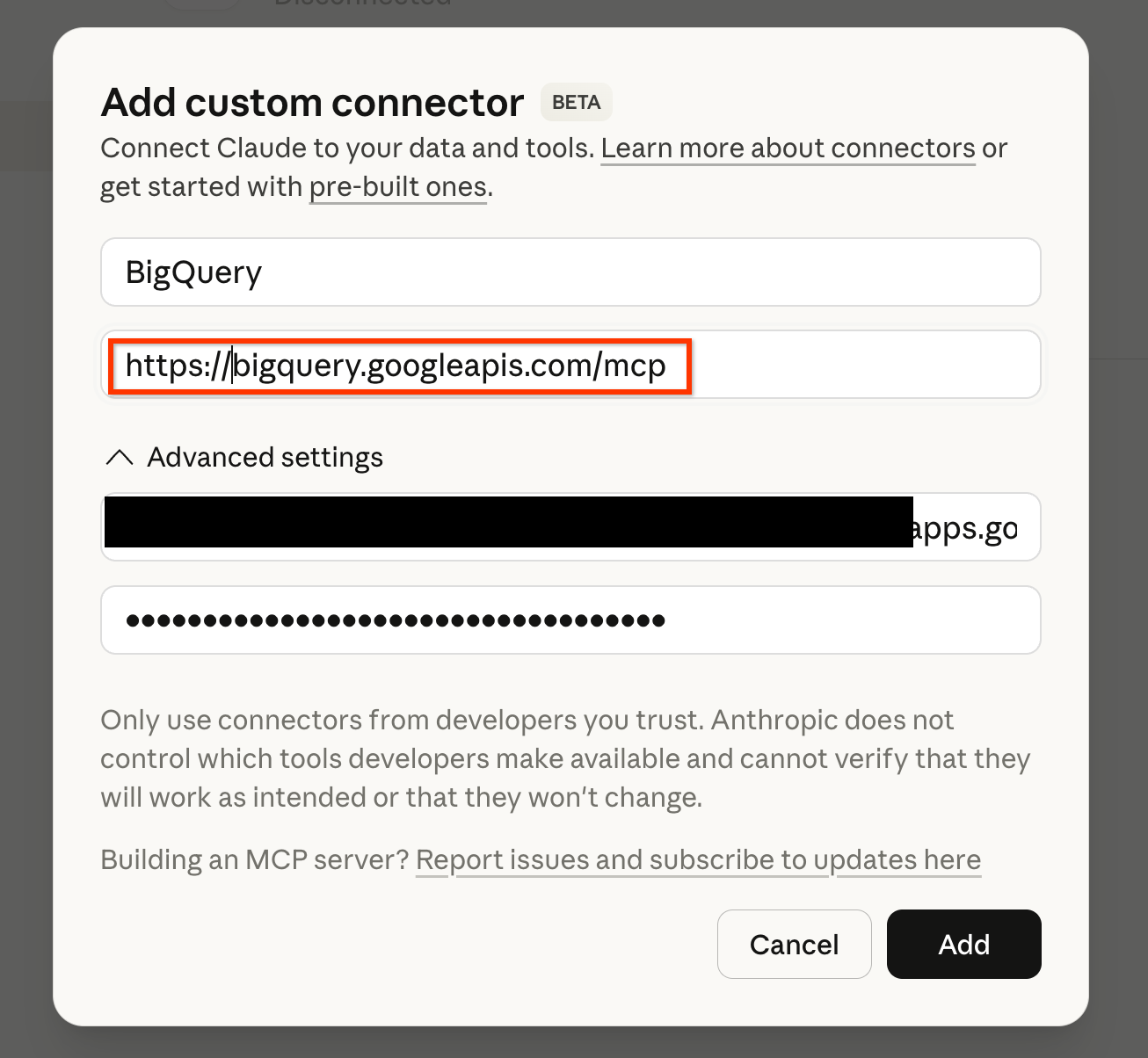
  1. Go to Settings > Connectors > Add custom connector
  2. Enter the Server URL:
    https://bigquery.googleapis.com/mcp
  3. Configure OAuth using credentials from the JSON file downloaded in Step #1:
    • Client ID: client_id field
    • Client Secret: client_secret field
  4. Save and connect to login with Google
Claude Add custom connector
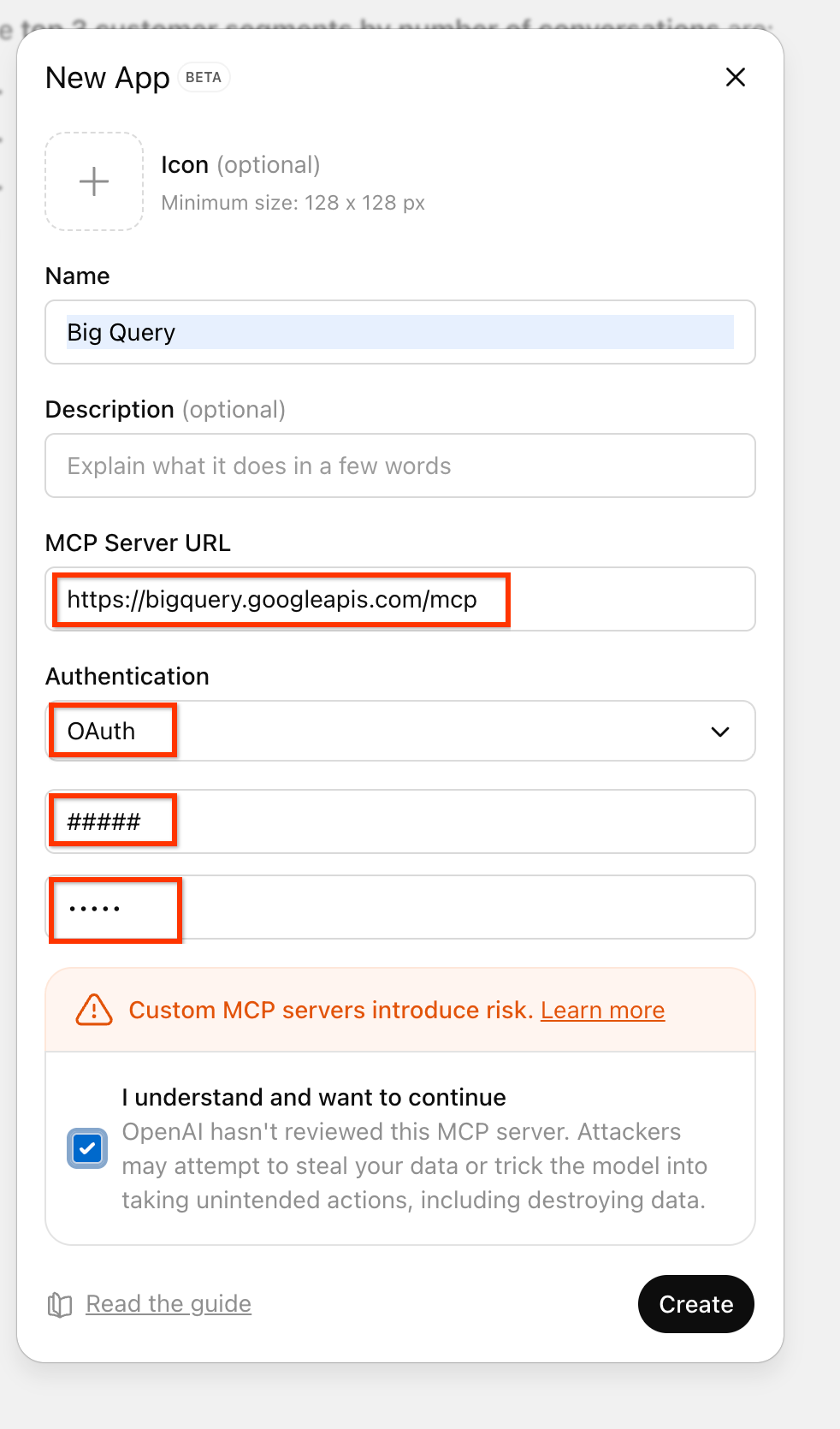
  1. Go to Settings > Apps > Create app
  2. Enter the Server URL:
    https://bigquery.googleapis.com/mcp
  3. Configure OAuth using credentials from the JSON file downloaded in Step #1:
    • Client ID: client_id field
    • Client Secret: client_secret field
  4. Save and connect to login with Google
ChatGPT Create App configuration

Gemini CLI uses a local settings file for MCP configuration. It uses google_credentials auth provider to send OAuth tokens from your local Google Cloud credentials to MCP servers.

  1. Create or edit the settings file at one of these locations:
    • User-level: ~/.gemini/settings.json (applies to all projects)
    • Project-level: .gemini/settings.json in your project root (overrides user settings)
  2. Add the BigQuery MCP server configuration:
    {
      "mcpServers": {
        "bigquery": {
          "httpUrl": "https://bigquery.googleapis.com/mcp",
          "authProviderType": "google_credentials",
          "oauth": {
            "scopes": [
              "https://www.googleapis.com/auth/bigquery",
              "https://www.googleapis.com/auth/cloud-platform"
            ]
          }
        }
      }
    }
  3. Ensure you're authenticated with Google Cloud:
    gcloud auth application-default login
  4. Restart Gemini CLI to load the new configuration
Note: Using google_credentials auth provider, Gemini CLI obtains OAuth tokens from your local ADC and sends them to the MCP server.
More on Gemini CLI MCP authentication

More info: BigQuery MCP Documentation

3Add CA Agent MCP Server

Add a CA Agent MCP server using the same process as Step #2, but with a different URL. You have two options:

Option A - All Agents: Expose all CA agents in a project as separate tools (recommended for projects with multiple agents)
Option B - Single Agent: Expose a specific CA agent as a single tool

Generate your CA Agent MCP URL:

Your CA Agent MCP URL:

Enter project ID above to generate URL

Follow the same steps as Step #2, using the URL generated above:

  1. Copy the CA Agent MCP URL
  2. Add as a new connector/app (same process as Step #2)
  3. Use the same OAuth credentials (Client ID and Secret) from Step #1
  4. Save and connect

Gemini CLI requires a different approach using bearer token headers (unlike the BigQuery server which uses google_credentials):

  1. Add the CA Agent MCP server to your settings file alongside the BigQuery server:
    "dataagents": {
      "httpUrl": "https://mcp.cademo.dev/{project}/dataagents/mcp",
      "headers": {
        "Authorization": "Bearer ${MCP_ACCESS_TOKEN}"
      }
    }
  2. Start Gemini CLI with your access token:
    MCP_ACCESS_TOKEN=$(gcloud auth print-access-token) gemini
Note: Access tokens expire after ~1 hour. Restart Gemini CLI to refresh the token.

You're All Set!

Once configured, you can ask your AI assistant questions about your data, and it will use the CA agent to query BigQuery and provide insights.

How it works:

  1. The AI agent retrieves your CA Agent configuration and metadata using the CA MCP server
  2. The AI agent uses the BQ Managed MCP server to query the relevant tables based on your question

Example prompts: